Getting a Transcript
This guide walks through transcribing audio or video, end to end.
1. Start a project
Click New Project from the projects page. The new project opens on the Upload view.
2. Set the language
Set the language of your audio or video from the project's hamburger (Menu) in the top bar → Language. Transcription quality and speaker labels depend on it.
We support 57 languages: English (US, UK, AU, Global), Afrikaans, Arabic, Armenian, Azerbaijani, Belarusian, Bosnian, Bulgarian, Catalan, Chinese, Croatian, Czech, Danish, Dutch, Estonian, Finnish, French, Galician, German, Greek, Hebrew, Hindi, Hungarian, Icelandic, Indonesian, Italian, Japanese, Kannada, Kazakh, Korean, Latvian, Lithuanian, Macedonian, Malay, Marathi, Maori, Nepali, Norwegian, Persian, Polish, Portuguese, Romanian, Russian, Serbian, Slovak, Slovenian, Spanish, Swahili, Swedish, Tagalog, Tamil, Thai, Turkish, Ukrainian, Urdu, Vietnamese, Welsh.
3. Add files
Open the Upload tab in the left sidebar.
- Drag and drop files from your computer, or click to browse.
- Or pick from previously uploaded files in your workspace's Files (media library).
Supported formats: 3ga, 8svx, aac, ac3, aif, aiff, alac, amr, ape, au, dss, flac, flv, m4a, m4b, m4p, m4r, mp3, mpga, ogg, oga, mogg, opus, qcp, tta, voc, wav, wma, wv, webm, MTS, M2TS, TS, mov, mp2, mp4, m4v, mxf.
4. Wait for processing
Files queue for transcription as soon as they land. Each file takes a few minutes; you'll get an email when the project is ready. Files that finish early already work in chat.
5. View the transcript
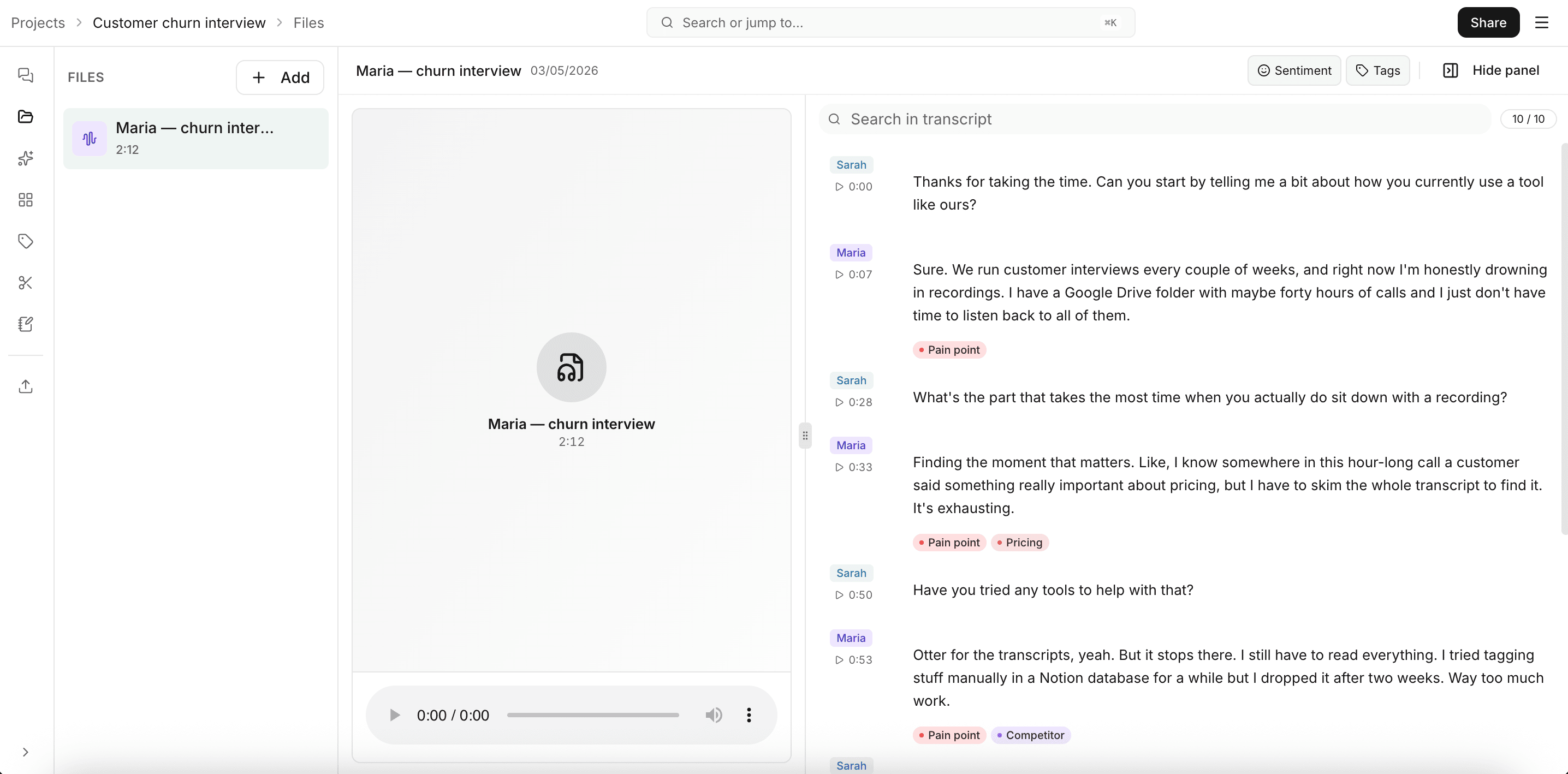
Open the Files tab in the left sidebar and click any file. The transcript appears in the right pane next to the player.
You'll see:
- Speaker labels and timestamps next to every line.
- Click any timestamp to seek the player.
- Click a speaker label to rename it across the file.
- Highlight text to make a clip or apply a tag.
Speaker labels work for: English (US, UK, AU, Global), Danish, Indonesian, Spanish, French, German, Italian, Portuguese, Chinese, Korean, Norwegian, Polish, Russian, Swedish, Turkish, Tamil, Ukrainian, Dutch, Hindi, Japanese.
For non-audio/video files (PDFs, documents, CSVs), the right pane shows the document or table view instead of a transcript.
If you need to add a domain-specific term so the transcriber recognizes it next time, see Custom Vocabulary.